
For the ONYX BOOX Note Max · Mac / Windows / Linux
Root and rescue your BOOX Note Max
One-click root and rescue for the ONYX BOOX Note Max.
Inkroot roots your BOOX Note Max with Magisk, un-bricks it over Qualcomm EDL when it's stuck on the logo, and puts it back to stock — on Mac, Windows and Linux, without a terminal.
Note Max / FW 4.2
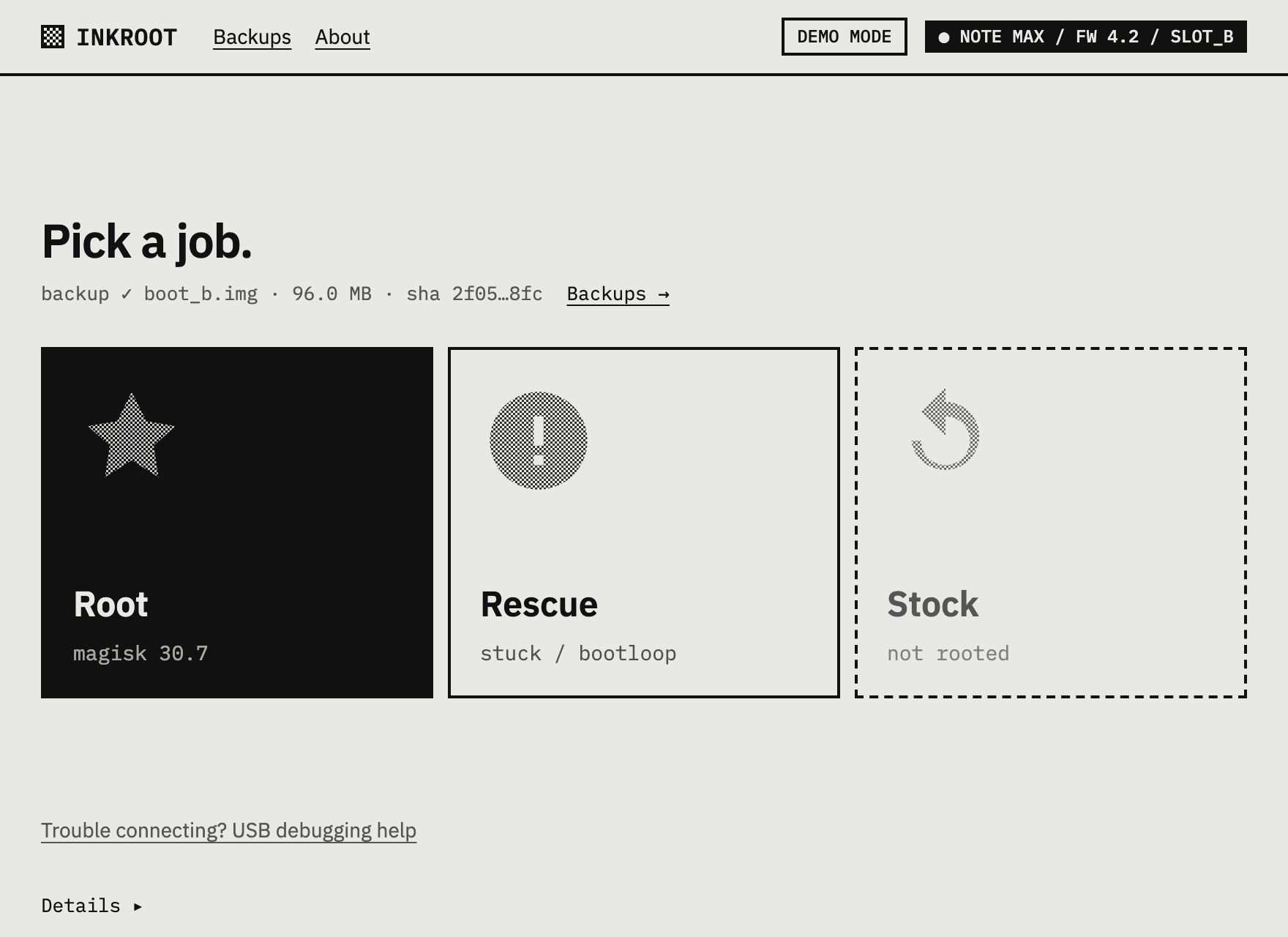
Free and open source · MIT licence
Download Inkroot
Pick the one for your computer. The app does the rest, one plain step at a time.
Tested on real hardware. Inkroot has been tested end-to-end on a real Note Max (firmware 4.2) on macOS, Windows and Linux. Keep your safety copy somewhere safe all the same.
- Recommended for this computer MacApple Silicon (M1 and newer) Inkroot-macOS-AppleSilicon.dmg Download
- Recommended for this computer MacIntel Inkroot-macOS-Intel.dmg Download
- Recommended for this computer WindowsWindows 10/11 (64-bit) Inkroot-Windows-x64-setup.exe Download
- Recommended for this computer Linuxx86_64, AppImage Inkroot-Linux-x86_64.AppImage Download
Latest release:
Supports: BOOX Note Max, firmware 4.2 (TKQ1.230721.002) only. Inkroot checks before it does anything.
Not sure which Mac you have? Open the Apple menu → About This Mac. “Chip: Apple M…” means Apple Silicon; “Processor: Intel” means Intel.
Windows may say Windows protected your PC: click More info → Run anyway (Inkroot isn't code-signed on Windows). On Linux, make the AppImage executable first: chmod +x Inkroot-Linux-x86_64.AppImage.
Every version and its release notes: GitHub releases.
Root a BOOX with Magisk, safely
How it works
Three steps. Inkroot checks everything before it writes anything, and keeps a copy of your tablet's startup software so there's always a way back.
-
Plug in
Turn on USB debugging and connect your Note Max. Inkroot checks the model, the firmware and the battery.
-
Safety copy
Inkroot reads your tablet's startup software (the
bootpartition) over Qualcomm EDL, checks it twice, and keeps it on your computer. Nothing is written without it.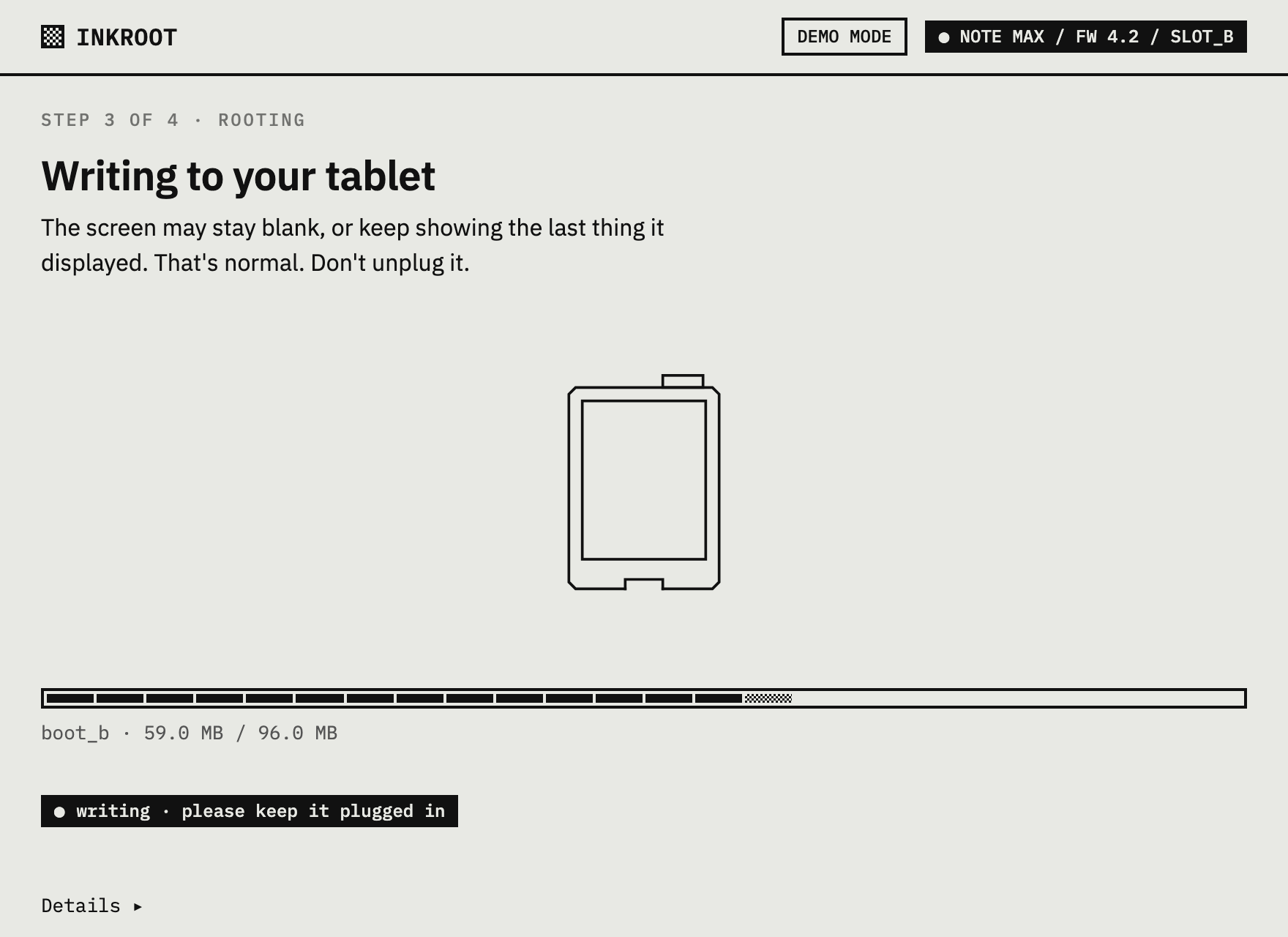
-
Root
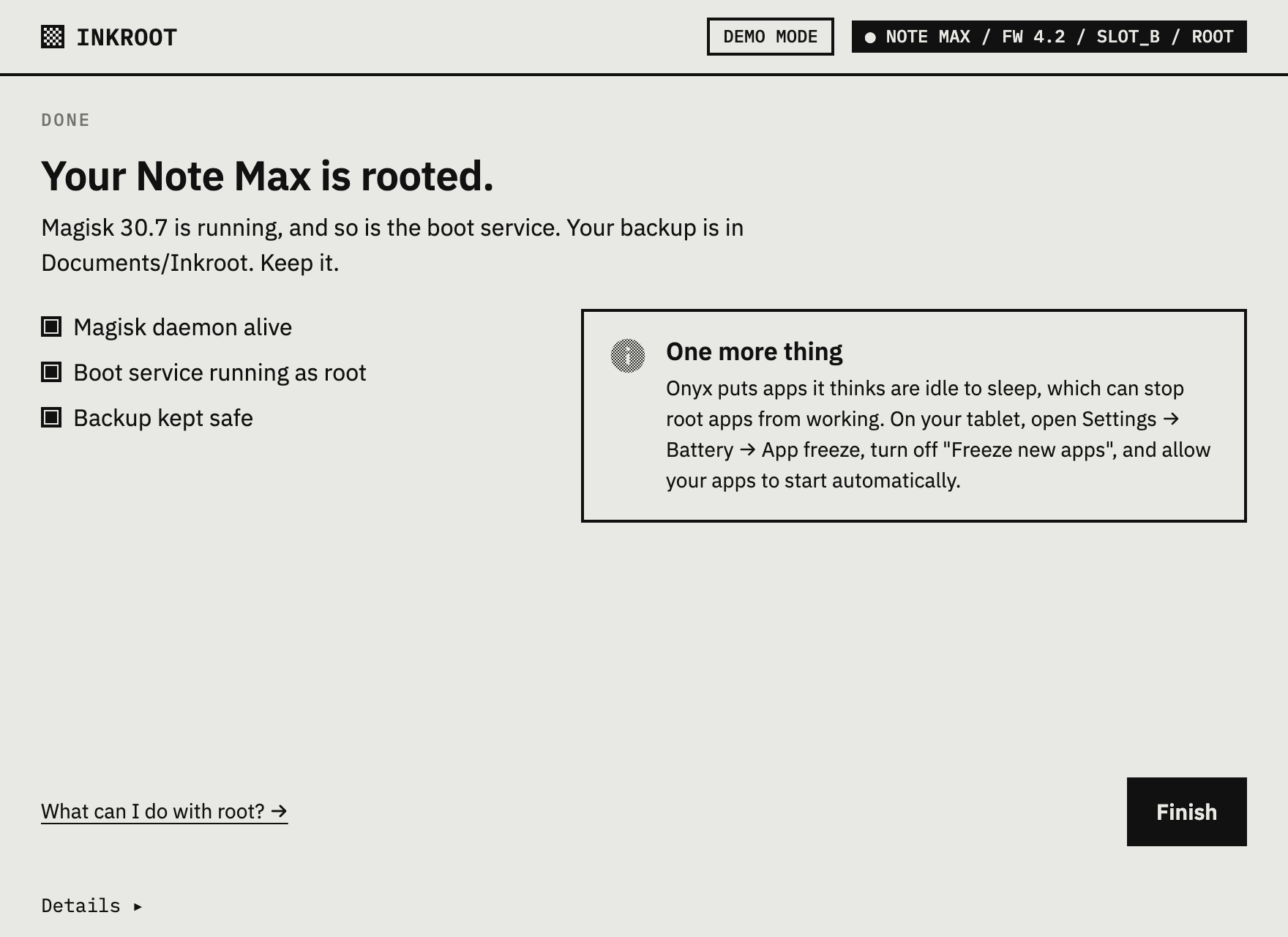
Inkroot patches that copy on the tablet with Magisk 30.7, verified boot kept on, writes it back, reads it back to check it, and confirms root and the boot service are running.
Unbrick a BOOX · bootloop · black screen
BOOX stuck on the ONYX logo?
After a bad boot flash the tablet can look dead, hang on the logo or bootloop. That's almost always a soft brick. If you have a copy of its boot image, Inkroot's Rescue job walks you through the deep-flash cable step by step and writes it back.
BOOX fastboot removed
Why EDL? Onyx removed fastboot
Onyx removed fastboot flash and fastboot boot on 4.x firmware and the bootloader is locked, so Qualcomm's EDL mode is the only way to read and write boot.
That's why rooting a BOOX on firmware 4.2 goes through Qualcomm's Emergency Download mode (EDL): it sits below the bootloader, so it can make a safety copy and write it back even when the tablet won't start. Inkroot uses the open-source bkerler/edl client to do it.
Plain answers
Questions
Will it void my warranty?
It can. Rooting changes your tablet's startup software, and Onyx may refuse warranty service for a modified device. Inkroot can put the original back (Return to stock), but that's no promise your warranty will be honoured.
Which BOOX models and firmware are supported?
Only the BOOX Note Max on firmware 4.2 (build TKQ1.230721.002). Inkroot checks the model and four firmware fields and refuses anything else, because the wrong firmware can brick the tablet. On different firmware? Open an issue with your details. Support for other models comes through device profiles.
Which cable do I need?
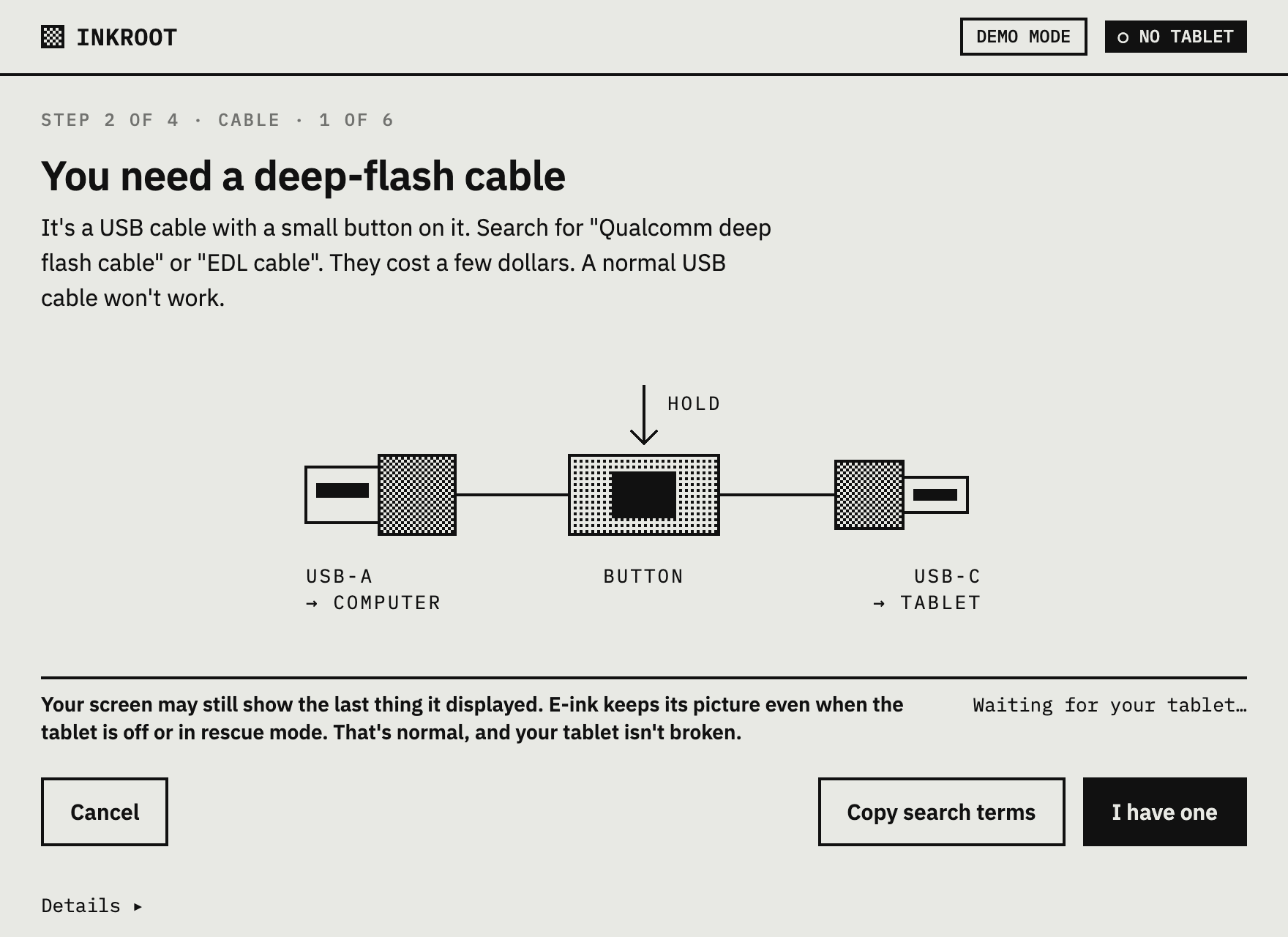
For backing up, rooting and returning to stock, the normal USB-C cable you charge with. Inkroot puts the tablet into Qualcomm's download mode (EDL) itself. Only to rescue a tablet that won't start do you need a Qualcomm deep-flash (EDL) cable, plugged into a real USB-A port (USB-C adapters usually don't work).
How do I turn on USB debugging on a BOOX?
Method A — Onyx menu (try this first):
- Open Settings → Apps.
- Tap the ⋮ menu (top-right) → USB Debug Mode, and turn it on.
Method B — if you can't find it:
- Install Activity Launcher (free and open source) from F-Droid or Google Play. On a BOOX, Google Play may first need to be turned on under Settings → Apps.
- In Activity Launcher, open Android Settings (
com.android.settings). - Tap About tablet, then tap Build number 7 times.
- Go back to System → Developer options and turn on USB debugging.
Then plug the tablet into your computer, tap Allow on "Allow USB debugging?", and tick Always allow from this computer.
Method A comes from field notes and hasn't been confirmed on firmware 4.2 hardware yet. If it isn't there on your tablet, Method B works on any Android 13 build.
Why can't the Magisk app grant root (su)?
On Onyx firmware 4.2, Onyx changed part of Android so that the Magisk app's root service crashes, and it can never show the "Allow root?" prompt. Root itself works. Inkroot installs a small boot service that runs a script as root at every boot instead. Details.
Why EDL and not fastboot?
Onyx removed fastboot flash and fastboot boot on 4.x firmware and the bootloader is locked, so Qualcomm's EDL mode is the only way to read and write boot.
Is it safe?
No root tool is risk-free. Inkroot makes and checks a safety copy first, checks the model and firmware, keeps verified boot on and checks every write. If something still goes wrong, the tablet can almost always be rescued with that copy. You use it at your own risk. Please read the disclaimer.
Is rooting legal?
In the United States, the Copyright Office's DMCA §1201 exemptions have allowed jailbreaking smartphones and general-purpose portable computing devices since 2015, most recently renewed in
- Other countries have different rules, and your purchase terms may matter too. Please check your local law. This isn't legal advice and comes with no guarantee.
Does Inkroot collect data?
Inkroot collects and sends nothing — no analytics, no telemetry, no account. Your safety copies stay on your computer and are never uploaded.